Tips
Workaround to delete a folder
Unfortunately, you can't delete folders directly from your projects. However, there is a workaround so that you do not have to send a support request to the COM team if you want to delete a folder.

-
The folder must contain a subpage (only one, not several). If there is no page in the folder, simply create a new page (without menu item) and move it into the folder. Click on the three dots next to the page in the folder:

-
Convert the page to a menu item:
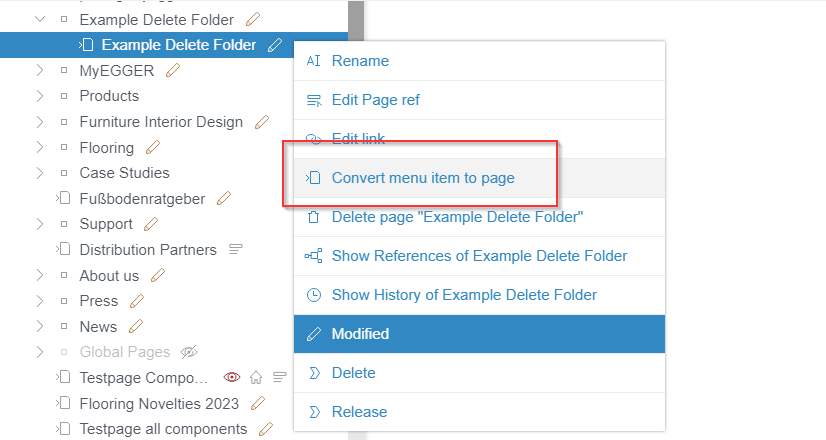
The folder is then deleted and disappears from the navigation display
-
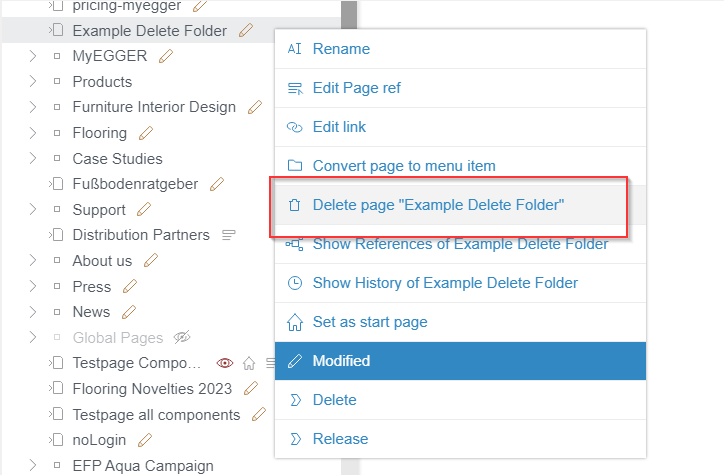
If the page that was in the folder also needs to be deleted, this can now be done as usual:
Linking Corporate or Case Studies Project
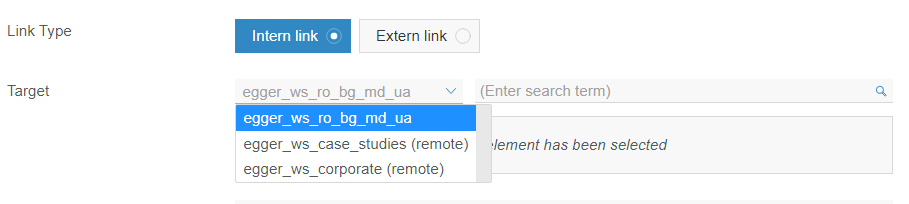
Linking pages, which are now located in the Corporate or Case Studies Project. You choose the type internal link and then you have a dropdown at target, where you have as default your local project, but when you open the dropdown the two projects can be selected and you can search here with the name for the page within the project and link it.
How to add Documents to the AWS Cloud
You can include Documents into First Spirit by adding them to the AWS Cloud.
Here I would like to briefly explain how you can add new documents to the AWS cloud.
There are two types of documents:
public These are publicly accessible and can be accessed by anyone via the link to the document. They are integrated into First Spirit via external links.
private These are documents that are downloaded and are only available directly via the Link type DAP link (e.g. in the MyEGGER area). The DAP link is explained in the Links chapter under Link Type: Jump to chapter
Important, the document names must be structured as follows: no special characters, no spaces, Replace spaces with _
Otherwise the document link will not work.
How to add public Documents
First: Name the documents correctly (no spaces or special characters).
1 open the Folder \dcssvm02\HYBRISupload$\s3_public\static in the Windows-explorer
2 select the folder where you document should be located (e.g. your market folder)
3 drag and drop you document into the folder
4 build the downloadlink: https://downloads.egger.com/folderstructure/documentname.pdf (e.g. https://downloads.egger.com/static/group/Data_privacy_information_for_applicants_EN.pdf)
5 include the document link as an external link into your page
Hint
It takes about 30 minutes for the download link to work after the document has been moved to the folder
How to add private Documents
First: Name the documents correctly (no spaces or special characters).
1 open the Folder \dcssvm02\HYBRISupload$\s3_private\dld in the Windows-explorer
2 drag and drop the document into the folder (please use zip format for large files)
3 the document will be available in First Spirit DAPs within an hour.
4 Select DAP Link within First Spirit and search for your Document.
Page changes on an existing page are not shown online
What to do if an existing page has been edited but the content is not displayed online after the release:
1 rename the page (only in en is enough - just add a dot or something to the page name on navigation level)
2 save
3 rename the page again (delete what you added in step 1 so that the page is named as it was before)
4 save
5 release the page
If this does not solve the problem, please write a COMSupport ticket.
How to use the translation helper
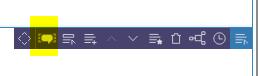
You can find the icon on the right upper corner for each component/grid in the preview or under "Page" with a click on the three dots:
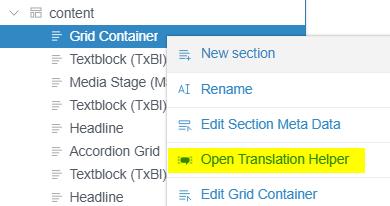
You can copy text from and to all of the languages available in your projects. You can always copy the texts from the language you are currently viewing/editing to the other languages*:
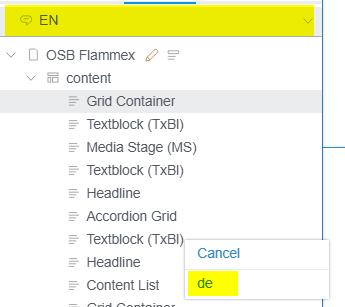
If you want to copy contents from e.g. DE to EN (or any of your local languages to EN or other local languages), you need to switch from EN to the respective language
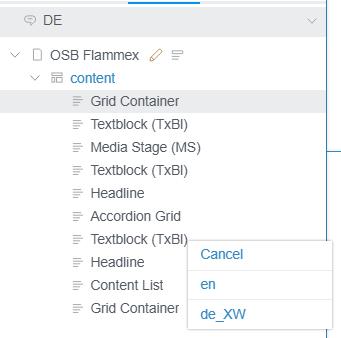
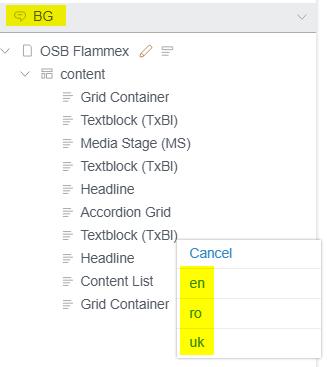
*If you have additional localised language variations (e.g. de_XW, es_XL. en_XU, en_XG), you need to switch the language in the left upper corner from EN to your "main" language (e.g. DE) then you can also copy the contents from DE to de_XW
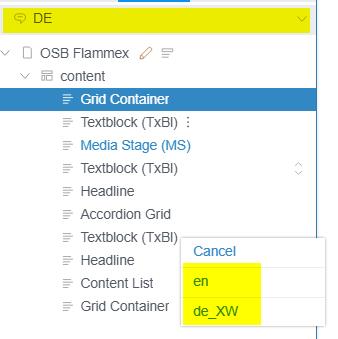
In general, once you chose the language to which you want to copy the translations.
How to add Contactforms
Contact forms are created via internal links and the contact ID as a query string:
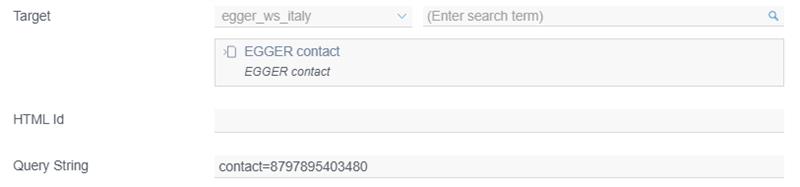
Internal Link: EGGER Contact
Query string: contact=ID (e.g. contact=8797895403480)
Overview of existing Contactforms: LINK
Create new contact ID: If there is no suitable contact ID, please send a COMSupport ticket (component: FirstSpirit) with the following information: First and last name, email, country, position.
Short URLs
If you need short URLs, please request them as follows:
1 Create a COMSupport Ticket with Component QR-Code/Short-URL
2 Include the following information:
- Caas ID and project ID (only per First Spirit project not per language), except for dynamic product and decor detail pages, here we need the PIM code or the url name
- name of the short URL (e.g. /perfectsense) [We check in the system whether the Short URL already exists, if so we will inform you or adapt the Short URL]
- markets in which the short URL is required
- Link target (e.g. PerfectSense campaign page)
- If you want to track the Short URL: source, medium, campaign ID & name
3 The system is deployed about once a day, so we will inform you as soon as your short URL is created, including information on when it will start working (the next day at the latest).
Geolocation
When a user clicks on a Short URL, the service uses geolocation data to determine the user's location and redirects the user to specific destination based on their geographic location.
For example, if you have different landing pages for different markets or offer specific promotions in different areas, we can set different targets using geolocation-based Short URLs to ensure that users are directed to the most relevant content based on their location. This can enhance user experience by providing localized information and offers.
We only need an information in which countries or markets which target the Short URL should have.
Types of Short URLs
1 Short URL link target: egger.com
Please send us the Caas ID and Project ID (e.g. Project: 2119e13f-7d52-4ac6-a227-fe2f388fe0a1 & Page: 33d92109-53a3-4ae7-8376-53d803491afe )
2 Short URL link target: external URL
Please send us the URL (e.g. https://www.youtube.com/watch?v=BcqpajSO__0 )
4 Short URL link target: PIS Document
Please send us the Download link (e.g. https://www.egger.com/get_download/6cc017a7-052e-4bfa-bb40-27ba476deaa9/DecorOverview_Flooring_Novelties_2023_English.pdf )
5 Short URL link target: Document (PDF, zip, docx, …)
Please send us the AWS Cloud Link to the Document (e.g. https://downloads.egger.com/static/...)
Red eye
Please resolve red eyes as quickly as possible. Red eyes can break your projects and those of others and lead to problems in the long term or during go-lives and releases.
- red eye = release conflict
Often the following issues lead to red eyes (please check them before contacting the COM for support):
When releasing a page:
- Pages linked that are not yet released > release the linked pages or change the link to a released page
Hint
To ensure that no old or incorrect pages are linked, the project should be kept as clean as possible. This can lead to fewer red eyes, as incorrect pages are linked less frequently.This can lead to fewer red-eyes, as it becomes less likely to link to incorrect or outdated pages.
- Input error: sometimes when copying content into the project errors occure (e.g. icons, internal links) > change the elements to the correct input (e.g. search for the icons in your project or change the internal link)
Warning
never click on force release
When deleting a page:
- if you not complete a delete workflow > complete the delete workflow until the page is gone or abort the delete to stop the workflow
- page is still linked somewhere > click on check to see which page you need to adapt and delete the link on that page (you can only delete a page if there are no inbound links anymore)
If you can't fix the problem or if it is not caused to the maintenance in First Spirit please send a COMSupport ticket and request support on solving the red eye. Please don't just leave the red eye as it is.
Jira Projects
We use 3 projects for website content:
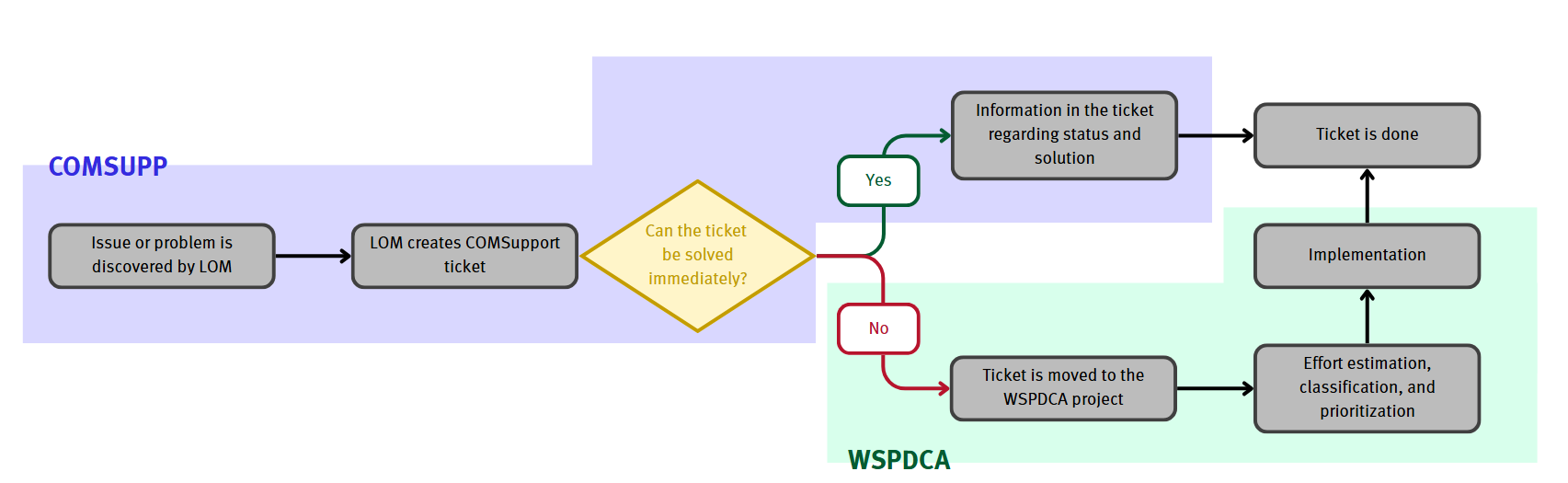
1 COMSupport = request support from COM
2 WSContent = used for tasks for local online marketing
3 WSPDCA = Development and Improvement
COMSupport
Use the COMSupport project to easily submit your support requests through a structured system, ensuring efficient support from the corporate online marketing team.
- tickets are solved by COM
- tickets are autmatically assigned base on the chosen component
- we try to solve tickets as quick as possible. Due to parallel projects and prioritization, however, the following processing time must be kept in mind:
| Request (= component) | Responsibility | Status | Time (working days) |
|---|---|---|---|
| First Spirit: Bug, New Feature, Improvement, Tasks | YF, CP, LD | Information | 1,5,5,2 |
| myEGGER | YF | Information | 2 |
| Tracking | BP | Information | 3 |
| Qr-Code/ShortURL | LD | Done | 2 |
| SEO | MR | Information | 3 |
| Support | COM | Information | 5 |
| User management | CP | Information | 2 |
WSContent
Use the WSContent project to efficiently communicate rollout topics and tasks from the corporate online marketing team while also having the flexibility to organize their own tasks independently.
- tickets are solved by LOM
- lead per market = main editor
WSPDCA
The WSPDCA project is used to track and monitor development and improvement topics through a structured Plan-Do-Check-Act framework, ensuring that relevant tickets are efficiently prioritized and solved for focused attention and resolution.
- tickets are solved by COM
- stakeholder interest are included with a voting team. If you want to push a topic please reach out to your representative in the voting team, so they can vote on a topic
- representatives of local markets in the voting team: Tomas Zatloukal (EAST), Stanislav Maslikhin (WEST) & Steffen Jungmann (CENTRAL)
last updated: 12/2025